
Download My Portal – Free Windows Add‑ons & Tools App
What Is My Portal and Who Is It For?
My Portal is a free Windows‑only application created by Max Smolens that lives in the “Add‑ons & Tools” category. At its core, the program is a lightweight hub that aggregates a collection of browser‑enhancing utilities, quick‑access shortcuts, and productivity boosters. Whether you spend hours navigating the web for work, research, or entertainment, My Portal aims to reduce the number of clicks you need to perform routine tasks such as opening frequently visited sites, translating pages, capturing screenshots, or managing download queues. The design philosophy behind My Portal is simplicity combined with functionality – the interface is intentionally uncluttered, allowing users to focus on what matters most: getting things done online without the overhead of heavyweight extensions or multiple independent programs.
Because the tool is distributed as a free download, there are no hidden fees, subscription traps, or invasive ads. Max Smolens has emphasized security throughout the development cycle, signing the installer with a valid certificate and performing regular updates that patch vulnerabilities and add new mini‑tools based on community feedback. The app integrates directly with the default Windows browser (Microsoft Edge) but also works with Chrome, Firefox, and other Chromium‑based browsers through a straightforward “add‑on” registration process. In short, My Portal is a one‑stop shop for anyone looking to extend their browser’s capabilities while keeping their system clean and responsive.
Key Features, Benefits, and the Real‑World Pros & Cons
Feature Highlights
- Quick‑Launch Tiles – Open favorite websites, local files, or system utilities with a single click.
- Built‑in Translator – Translate whole pages or selected text without leaving the browser.
- Screenshot Capture Tool – Capture full‑page, visible area, or custom region screenshots directly from the portal.
- Download Manager Integration – Pause, resume, and organize downloads without opening a separate manager.
- Ad‑Block Shortcut – Toggle lightweight ad‑blocking on or off for faster page loads.
- Theme Customizer – Choose light or dark mode and personalize tile colors to match your workflow.
- Automatic Updates – The app checks for updates daily and installs them securely in the background.
- Multi‑Browser Support – Works with Edge, Chrome, Firefox, and any Chromium‑based browser after a simple add‑on enable.
Pros
- Completely free with no hidden costs.
- Lightweight installer (under 15 MB) that runs smoothly on older hardware.
- All tools are bundled into one interface, reducing desktop clutter.
- Regular security‑focused updates from the developer.
- Easy to customize – users can add or remove tiles in seconds.
Cons
- Limited to Windows; no native macOS, Android, or iOS version.
- Advanced users may find the built‑in translator less powerful than dedicated services.
- Feature set is static until the next update – no on‑the‑fly plugin marketplace.
- Requires manual enablement of the add‑on for non‑Edge browsers.
Installation, First‑Run Setup, Compatibility & Frequently Asked Questions
Step‑by‑Step Installation
1. Download the installer from the official My Portal website. The file is named MyPortalSetup.exe and is digitally signed.
2. Run the installer with administrator privileges (right‑click → “Run as administrator”). The wizard guides you through a standard “Next‑Next‑Finish” process.
3. Choose installation folder – the default location (C:\Program Files\MyPortal) works for most users, but you can select a custom path if desired.
4. Complete the setup – once installation finishes, you’ll be prompted to launch My Portal immediately. Tick the “Launch after install” box for a quick start.
First‑Run Configuration
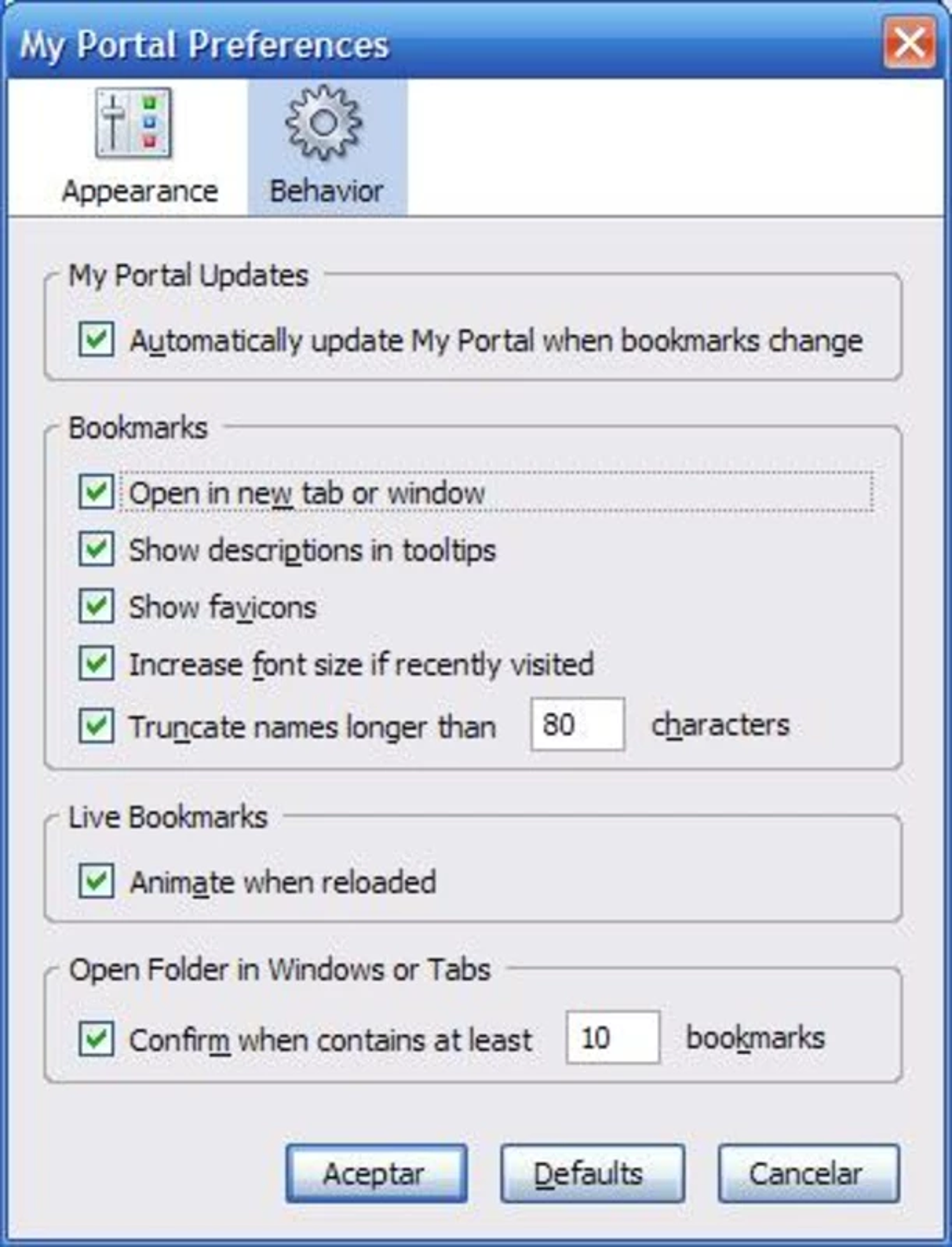
Upon first launch, My Portal presents a brief onboarding screen. Here you can:
- Select your default browser (Edge is pre‑selected).
- Enable or disable the built‑in ad‑blocker.
- Choose a theme (light or dark) that matches your Windows color scheme.
- Pin your most‑used websites to the tile dashboard.
System Requirements & Compatibility
My Portal runs on Windows 7, 8, 10, and 11 (64‑bit). Minimum hardware requirements are:
- Processor: 1 GHz or faster
- RAM: 2 GB (4 GB recommended)
- Disk Space: 50 MB free for installation
- Graphics: Any DirectX 9‑compatible GPU
Frequently Asked Questions
Is My Portal really free or are there hidden charges?
My Portal is completely free. There are no in‑app purchases, subscription fees, or premium tiers. All features are available after the initial download.
Can I use My Portal with browsers other than Edge?
Yes. During the first‑run setup you can select Chrome, Firefox, or any Chromium‑based browser. The app will install a small companion add‑on to enable tile shortcuts and tool integration.
How does My Portal handle security and privacy?
The installer is signed with a valid certificate, and all updates are delivered over HTTPS. The app does not collect personal browsing data; it only stores your custom tile configuration locally.
Will My Portal slow down my PC?
No. My Portal is designed to consume less than 30 MB of RAM when idle and has a negligible CPU footprint. It runs as a background process only when you open the portal or use one of its tools.
How can I suggest new features or report bugs?
You can contact the developer directly via the “Feedback” button inside the Settings menu, which opens a pre‑filled email to Max Smolens. There is also a public forum on the official website where users share ideas.
Final Verdict – Should You Download My Portal?
After evaluating the feature set, performance, and overall user experience, My Portal emerges as a valuable addition for Windows users who want to streamline their browsing workflow without paying for premium extensions. Its free‑to‑use model, lightweight footprint, and regular security‑focused updates make it a trustworthy choice for both casual surfers and power users alike. While the lack of native macOS or mobile versions limits cross‑platform reach, the Windows‑only focus allows the developer to fine‑tune performance and integrate deeply with the OS.
If you frequently juggle multiple websites, need quick translation, or simply want a tidy dashboard for your most‑used tools, My Portal delivers exactly that in a single, cohesive package. The minor drawbacks—such as a less robust translator compared to dedicated services and the requirement to enable add‑ons for non‑Edge browsers—are outweighed by the convenience of having everything in one place.
Ready to boost your online productivity? Click here to download My Portal for free and start customizing your browsing experience today. The installation takes just a few minutes, and because the app updates automatically, you’ll always have the latest tools at your fingertips. Give it a try—there’s no cost, no risk, and a noticeable gain in efficiency.







